Three weeks into building an inbox AI for a hairdresser, I was ready to scrap the whole thing.
Every email the system sent sounded like a corporate helpdesk. "Thank you for your enquiry, we would be happy to assist you with your booking request." My client writes "Hey! Thursday arvo works, want me to lock you in?" with a smiley face and three exclamation marks.
The AI was fast. Under two minutes, every time. But speed means nothing if the customer reads the reply and thinks "this isn't a real person." In a service business where your personality is half the reason people book, a robotic email can lose you the job faster than no reply at all.
It took me three weeks to solve that voice problem. And that experience changed how I think about inbox AI entirely.
What is inbox AI? Inbox AI is software that reads, sorts, and responds to your emails without you doing it manually. For service businesses, the real value is answering customer enquiries in minutes while you're physically away from your desk. It ranges from free Gmail features to fully custom systems trained on how you actually write.
I build custom inbox AI systems for a living. And I'm about to tell you how to set one up for nothing.
Most people don't need a custom system to start. Gmail's built-in AI handles most of what you need right now, today, for free. If that's enough for you, genuinely, good. But what I've found is that once people see what even basic inbox AI can do, they want more. They want the AI responding like them. They want it booking clients. They want it chasing leads that go quiet. That's when the free tools run out of road.
How to Start Inbox AI for Free
If you use Gmail, you already have inbox AI. Google rolled out Gemini features through 2025 and most of them are sitting in your inbox right now, turned off.
Smart Reply and Smart Compose. Gmail reads the email you received and suggests short replies or finishes sentences as you type. For quick confirmations ("Yes that works" or "I'll send it through this arvo"), it's surprisingly useful. It won't sound exactly like you. But for one-line responses, it's fine.
Priority Inbox. Sorts your email by how you've interacted with similar messages before. Customer enquiries get surfaced. Newsletters get buried. Not perfect, but miles better than scrolling through everything chronologically.
Email summaries. Gemini condenses long threads into a few sentences. Come back from a three-hour job to 30 unread messages and instead of reading every single one, you get the gist in 10 seconds.
Turn it on. Open Gmail, go to Settings, look for "Smart features and personalisation," and toggle everything on. Five minutes. You'll see suggestions within a day or two as Gmail learns your patterns.
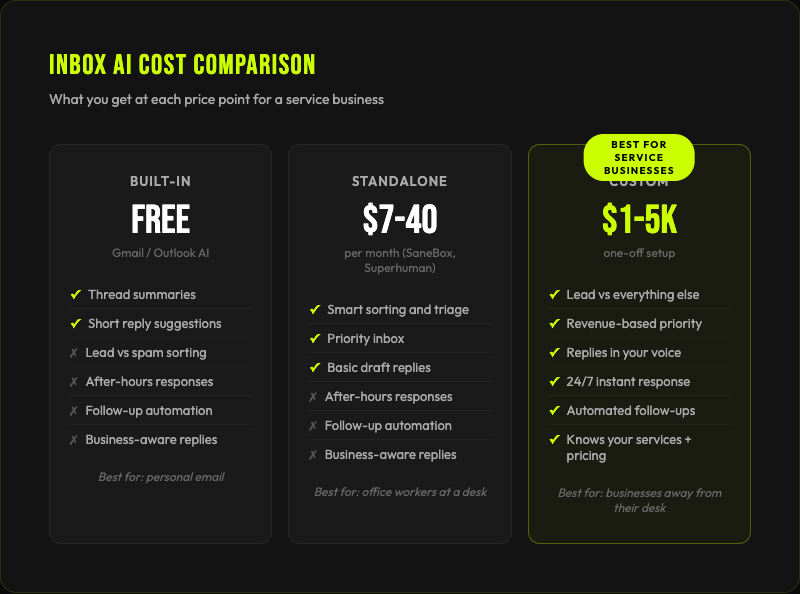
The limit is that Gmail AI doesn't know your business. It can't tell a new lead worth $5,000 from a Bunnings promo. It won't follow up on an enquiry that goes quiet. And it won't book someone into your calendar. It's a sorting assistant. Nothing more.
Paid Inbox AI Tools (and Why I'm Cautious)
SaneBox starts at $7/month. Superhuman runs $30-40. There are others. I'll be straight with you, I haven't used them enough to write a proper review.
What I can tell you is why clients come to me after trying them.
The voice problem again. These tools send replies, but they don't learn how you write. They don't study your sent folder and adjust. A hairdresser and a builder get the same tone of reply. Neither of them sound right.
Then there's data. Where are your emails going? What are they using your conversations for? Are they training models on your client messages? Most of these tools make that genuinely hard to answer. If you're a dentist handling patient records or a real estate agent with settlement emails, "we take your privacy seriously" on a terms page isn't good enough.
And cost. $30-40/month sounds cheap until you realise the tool never gets smarter about your specific business. You're renting a general-purpose assistant. Forever.
What a Custom Inbox AI System Actually Does
Back to the hairdresser. She was spending four to five hours every evening catching up on emails. Booking enquiries, colour consult follow-ups, pricing questions. All landing while she was cutting hair and couldn't touch her phone.
I built a system that read every incoming email, figured out what it was about, and drafted a reply in her voice. For the first few weeks she checked every draft before it sent. Read the AI's version, tweaked a word or two, hit send.
After a month she trusted it enough to let the system respond on its own. Booking confirmations, answering common questions, following up on quiet enquiries. The AI had learned enough about her business to handle it.
Four to five hours of evening email dropped to about 20 minutes of checking. And she started catching enquiries that would've sat in her inbox for hours. 78% of customers go with the first business that responds (Lead Connect). When you're mid-appointment for three hours, you're not first. With the AI running, she was responding in under two minutes. Every time.
How I Make the AI Sound Like You
This is the bit most inbox AI articles skip. Probably because it's harder to explain than features and pricing.
Twice a week, the agent goes into my client's sent folder. It reads the emails they actually sent. Then it compares those to the drafts it had written. And it learns from the gap.
If the AI suggested "Dear Sarah, thank you for your interest in our services" and my client actually wrote "Hey Sarah! Yeah we can definitely do that, when works for you?", the system adjusts. Over two to three weeks it picks up the short sentences, the exclamation marks, the casual phrasing, the way this specific person writes.
A $30/month tool doesn't know that you say "no worries" instead of "certainly." It doesn't know you always ask about the wedding date before quoting a bridal package. Those details are the difference between a reply your client trusts and one that makes them phone to check if they're talking to a real person.
Inbox AI Security: What You Should Actually Ask
When you let an AI into your inbox, you're giving it access to everything. Client conversations. Financial details. Personal messages.
I'm particular about this. I want to know exactly what the AI can see, where the data goes, and whether anyone else gets to touch it. I want specifics, not a vague privacy policy.
The systems I build give clients controls most off-the-shelf tools don't. You can say "never read emails from this person." Or "never respond to this sender." You can set rules to automatically archive, delete, or junk certain types of messages. Spam, phishing attempts, anything from a domain you don't trust. You stay in control of what the AI can and can't do.
"You're giving an AI access to your inbox, isn't that risky?" Fair question. It is if you don't set boundaries. For businesses handling sensitive client information (physios with patient records, real estate agents with settlement docs), you need to know where data is stored, whether it's encrypted, and whether the provider is training their models on your conversations. If they won't give you a straight answer, that IS your answer.
What Goes Wrong (and What Surprised Me)
The AI will send bad replies early on. Before the system has learned your style, you'll catch drafts that miss the tone, misread the context, or answer a question the customer didn't ask. This is why I start every build in draft-only mode. The AI writes, you review, you send. Nothing goes out without your eyes on it first.
Most clients switch to automatic after two to four weeks. Even then, you set the rules. Automatic for booking confirmations and standard questions. Draft-only for complaints, refund requests, or anything from a specific client you want to handle personally.
The thing that surprised me most was how much time email actually takes. You think a reply takes 10 minutes. But add the context switching (reading the email, pulling yourself out of whatever you were doing, thinking about the reply, writing it, switching back), it's closer to 20. Times that by 20 emails in a day and you've lost six hours you didn't notice.
McKinsey reckon the average office worker spends 11 hours a week on email. For someone at a desk all day, that's bad. For a service business owner squeezing it between jobs, I'd bet it's worse.
With the inbox AI running, the reply is already written when I sit down. Read it, approve it, move on. My email time dropped by about 80%. I batch it twice a day instead of checking constantly. The AI handles the urgency in between.
What Happens After Month One
The question clients ask after the first month is never "does it work?" By then, they know. The question is always "what else can it do?"
Can we extend it to manage my calendar? Can it update client records? Can it send a follow-up automatically if someone hasn't booked after a quote? Can it request a review after every completed job?
The answer is always yes. The inbox is usually just where people start because it's the most painful thing. Once they see what automation can do for one part of their business, they want it everywhere.
I like that progression. Start with the inbox. Get comfortable. Then build out from there.
Common Questions About Inbox AI
What is inbox AI and how does it work?
Inbox AI reads, sorts, and responds to emails without you doing it. It categorises messages by urgency, drafts replies in your voice, flags time-sensitive enquiries, and follows up on quiet conversations. For service businesses, the main value is responding to leads in minutes while you're on a job.
Can I set up inbox AI for free?
Yes. Gmail's built-in AI features (Smart Reply, Smart Compose, Priority Inbox, email summaries) are free and take five minutes to turn on. They won't know your business or reply in your voice, but they sort and prioritise your inbox immediately.
What if the AI sends the wrong reply?
Start in draft-only mode. The AI writes the reply, you review it before it sends. Nothing goes out without your approval. After two to four weeks, when the system has learned your voice, you can switch specific email types to automatic while keeping sensitive ones on draft-only.
Is inbox AI safe for businesses handling sensitive data?
It depends on the system. Custom builds let you control what the AI can read, which senders it can respond to, and where data is stored. Off-the-shelf tools vary. Some store data on third-party servers. Some train their models on your emails. Ask directly. Where is my data stored, who can access it, and are you using it to train your AI? If they dodge the question, don't use them.
How much does inbox AI cost?
Free for Gmail's built-in features. $7-40/month for standalone tools. $1,000-5,000 for a custom system. The custom option costs more upfront but usually pays for itself within months if you're losing even one lead a week to slow replies.
Can inbox AI learn to write like me?
Off-the-shelf tools use generic tones. Custom systems learn your voice by studying your sent emails and comparing their drafts to what you actually wrote, adjusting over two to three weeks until the replies are indistinguishable from yours.
Your Inbox Shouldn't Need You
If you want to see what inbox AI would look like for your business, grab a free audit.
Last updated: April 2026